Tuesday, 1 May 2012

6 Ways To Stay Focused While Blogging From Home

JAN29


blog from homeIn November, guest blogger Alvia Lopez talked about warding off and curing blogger’s block (check out the post here: Tips To Fight Blogger Block). Sometimes, though, blogger’s block isn’t about vision, audience, or the need to reinvent your blog. In fact, most days, it’s just about distractions.

Arguably, this isn’t blogger’s block at all but just that: distractions. These include kids, roommates, the phone that won’t stop ringing, and the cat that keeps meowing at you for the expensive wet food instead of that dried nonsense you scoop out of a bag. Your friend assumes that because you doing some work from home, you won’t mind working until 5 AM and spending the afternoon helping him deal with his infestation problem instead of working.You sleep in the next day until noon but figure, what’s another three hours? and end up getting absolutely nothing accomplished for your blog the entire week.

Still, whether it’s distractions or blogger’s block, it’s important to have as many things working for rather than against you when working from the comfort of your own home.

The key to successfully working at home? Don’t get too comfortable. It’s easy to imagine yourself working from the couch in pajamas and pink bunny slippers, but it doesn’t work this way. When you work from the couch in your pajamas in front of the TV, you spend hours watching Gordon Ramsey screaming at people instead of blogging, you spill your coffee and waste time looking for your household cleaners instead of writing advertisements, and you fall asleep at 3 o’ clock in your post-lunch funk. 

Prep yourself for productivity and success by pretending that you work a real job from a real office.

6 Ways To Stay Focused


1. Take a shower, brush your teeth, and wear deodorant. You wouldn’t go to the office smelling like a subway, would you? Feeling clean is refreshing and will make you feel less like falling asleep on the job.

2. Wear clothes that you could imagine wearing to lunch with an old friend to a nice café. You don’t need to wear heels or cufflinks—just something that’s comfortable when you sit up but not so comfortable that it makes you want to lie down.

3. Work at a desk. If you don’t have one, get one, and don’t work at the kitchen table. That’s for eating; a desk is for working. Find a desk and a chair with lumbar support on Craigslist or a used furniture store. If you don’t work from an office with a desk, how are you supposed to pretend that you’re doing important things that are getting you a paycheck?

4. Don’t accept calls from friends or relatives unless it’s during your lunch hour or after your designated work hours. You wouldn’t accept them if you were working from behind a desk under your boss’s nose.

5. Take fifteen minute breaks after two hours of work. Don’t spend them at your desk; take the dog for a walk, do some yoga, or clean the kitchen. Doing something on your feet will refresh you from the eye strain and sitting of desktop work.

6. Keep a tally of what you’ve accomplished by day’s end. Before leaving your desk for the day, write down your goals for the next day. Writing down a to-do list will remind you that you have to wake up when the alarm goes off the next morning instead of hitting snooze thirty times.

Post Your Comments, Views And Questions Below.

continue reading

Great New Twitter Count Button With Username And Suggest Follow Features

JAN29


twitter counter buttonWe all know how popular the Twitter Count Buttons are as we see them on the majority of blogs.They are the small button you can click to share a post on Twitter and they also display the number of times the post has already been shared.The button you see on most blogs and the button i showed you how to add to Blogger in a previous post is from Tweetme.While that button does exactly as you expect in allowing readers to share your posts on Twitter and display the number of shares a newer button from twitter does even more.

The Twitter count button i will show you in this post has a few cool extras.With the Tweetme button when users shared your posts they would have "Via @Tweetme" at the end, with this button you can have your Twitter username at the end.

Instead of this : 

6 Ways to Stay Focused While Blogging From Home | Spice Up Your Blog http://t.co/AMkr2O3via @Tweetme

You Get This :

6 Ways to Stay Focused While Blogging From Home | Spice Up Your Blog http://t.co/AMkr2O3via @PaulCrowePro

So not only are people sharing your post they are also sharing your Twitter Profile resulting in more Followers.

Secondly after a reader Tweets your post they will be Given the option to Follow you.The pop up window to tweet the post, first displays the Tweet then displays a Follow option as shown below.

A button that gets more people viewing your blog and more people Following you on  Twitter, Great lets add it to your blog.You can try out the button at the top left of this post to see it in action.I will show you the code for the button and how to add it to the top left wrapped in text as you see on this blog.

Add New Twitter Counter Button To Blogger


Step 1. In Your Blogger Dashboard Click > Design > Edit Html > Tick The Expand Widget Templates Box.


Step 2. Find the following piece of code in your blogs Html : (Click Ctrl and F for a search bar to help find the code - More Info)

<data:post.body/>

Step 3. Copy And Paste The Following Code Directly Above / Before <data:post.body/>

<b:if cond='data:blog.pageType == &quot;item&quot;'>
<div style='float:left; margin-right:10px;'><a href='http://www.spiceupyourblog.com'><img alt='Best Blogger Tips' src='https://blogger.googleusercontent.com/img/b/R29vZ2xl/AVvXsEj8zCJJtTQMYa45PghUnGz9XgpOd2c8CbHuME_y65AfgtQzkWmC5vcnZF8ZQRUiWKkfMztnLKp9BkdB2RjqCkEpNvd8woUB-p90L_V8MiHyYHATand-DcSED_NeKVA-78y_ythm8CumMA82/s1600/best+blogger+tips.png'/></a>
<a class='twitter-share-button' data-count='vertical' data-via='TWITTER-USERNAME-HERE' href='http://twitter.com/share'>Tweet</a><script src='http://platform.twitter.com/widgets.js' type='text/javascript'/></div></b:if>

Important : Replace TWITTER-USERNAME-HERE With your actual Twitter Username.

Note : The button is set only to be displayed on the post pages, if you want the button to also be displayed on the home page remove the code in red.

Step 4. Save your template, your Twitter button has been added to your blog.Remember you can add the code in your sidebars in a Html/Javascript gadget or other sections of your template.

Check out more of our Twitter Tips And Blog Gadgets.

Comments, Views And Questions Welcomed Below.

continue reading

Get More Feedburner Email Subscribers To Verify Their Subscription

JAN29


Most Bloggers Have A Subscribe By Email Rss Option On Their Blog Provided By Feedburner.When A Visitor To Your Blog Fills Out The Subscription Form They Must Confirm Or Verify Via An Email.However Often As Many As One In Five People Do Not Verify, Thus They Do Not Become Subscribers And Receive Your Latest Posts.In This Post I Will Share With You Some Methods That Will Help Get More Verified Email Rss Subscribers.

At the time of writing Spice Up Your Blog has just over 500 Rss Subscribers of which just over 300 subscribe by Email.Of that 300 an Amazing 92 have not verified their subscription !This is 92 regular readers lost, almost all of these people just didn't know they needed to verify or did not understand the Verification Email.


You can check your Email subscription stats in your Feedburner account.Simply log in to feedburner > Click on the feed you want the stats for > Chose 'Publicize' in the top menu > Click 'Email Subscriptions' in the side menu > Scroll to and click 'View Subscriber Details'.Here you will see a list of Email Subscribers and their status as verified or unverified.

So what can we do in an effort to get more subscribers to verify their subscription.This is something i have been thinking about and have two simple suggestions.
1. Add A Message Below The Subscription Form.

Most of you will have the Email Subscriptions form in your sidebars.Users can add their Email directly to the form and enter to get the process started.Simply add a line of text below the form like "We Will Sent You An Email Immediately After You Subscribe To Confirm, Make Sure To Click The Link In That Email Thanks".This will let the user know in advance they need to confirm which will lead to a higher verified subscriber count.Suggestions for the message are welcomed in the comments.

2. Personalize The Verification Email.

Did you know you can edit the verification Email ? In your Feedburner account you have the option to personalize the Email subscribers receive to verify.You can edit the Email From Address, Email Subject and The Actual Message In The Email.While the Email From Address is not too important making the subject and message more personal and informative will help.

To personalize your verification Email log into your Feedburner account > Choose the feed you want to edit > Click Publicize in the top menu > Click Email Subscriptions the side menu > Click Communication Preferences in the sub menu.


In the above screenshot from the Verification Email for Spice Up Your Blog you will see i haven't made too many changes from what you will see in your account.

*I changed the Address From Email to EmailRss@SpiceUpYourBlog.Com - That Email actually does not exsist as the Email address you use there does not need to be valid.However as the subscriber recently subscribed to the Spice Up Your Blog Email Rss it should register with them better.You can of course use any Email you like including your actual Email.

*I left the subject line as the default - You can of course change this and any ideas would be more than welcome in the comments.

*Message Body - I changed the opening greeting from the default "Hello There" to "Hi Paul Here From Spice Up Your Blog" - This is more personal making the subscriber more likely to read the rest of the Email and click the verification link.I also signed of by thanking them for subscribing.You can change the message in any way you like just make sure to leave the code "${confirmlink}" in tact as this will generate the link they need to click to verify the subscription.

I would be interested in any suggestions for the Email, Subject and message you may have, just post them in the comments.

Email Rss is in my opinion the best way to follow your favorite blogs and the best way for people to follow your blog.As you can see by my stats in the top of this post 300 of 500 subscribers use Email Rss so make sure to have the option available.We have more info onCreating Email Rss For Your Blog, More Great Feedburner Tips and make sure to Subscribe To The Spice Up Your Blog Email Rss.

That's It - Comments, Views And Opinions Are Welcomed Below.

continue reading

How To Automatically Redirect A Blogger Blog To Another URL

JAN29


There are a number of reasons you may want to automatically send visitors to your blog to another URL or from one blog to another.For example if you moved your blog, if you had two blogs and wanted to focus one just one and cover both topics.Automatically directing visitors to another URL is actually quiet easy and only requires a snippet of code added to the top of the template.In this post i will show you the code needed to automatically Redirect from a Blogger Blog to any other URL.

Firstly i should mention some people don't like to be redirected and you should only direct to a site with similar content.If you redirect people to sales pages, sites with adult content or anywhere the user is uncomfortable with it will put your Blogger account in jeopardy.For this reason the code i have in this post can be set to Redirect in an amount of time set by you.So you can set the code to redirect after 5 seconds and place a message at the top of the blog telling visitors they will be redirected.


With that in mind i have created a test blog that will direct to Google.Com so you can see how it works.Follow the link and wait 5 seconds for the redirect.

Demo - Automatic Redirect For Blogger

Add Auto Redirect Code To Blogger


Step 1. In Your Blogger Dashboard Click > Design > Edit Html.


Step 2. Find the following piece of code in your blogs Html : 
(It's Near The Very Top)

<head>

Step 3. Copy And Paste The Following Code Directly Below / Under <head>

<meta content='5;url=http://www.YOUR-URL.com/' http-equiv='refresh'/>

Important - 

1. Replace http://www.YOUR-URL.com/ In Blue With The URL You Want To Forward To.
2. The Number 5 In Red Sets The Amount Of Seconds Before The User Is Redirected Change This To Suit.

Step 4. Save your template and your blog will now redirect after the time you set.Once again remember don't use this to send people to sites unrelated or with spam as your entire Blogger Account may be effected.

If you give at least 5 seconds and add a clear message at the top of the blog there should be no trouble.Make sure to check out more of our Blogger Help Posts
Add Your Comments, Views And Questions Below.

continue reading

New - Use Over 70 Cool Fonts On Blogger Template Designer

JAN29


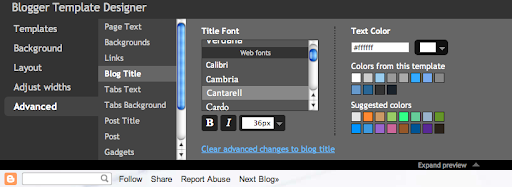
custom fonts bloggerBack in November last year i broke the news ofGoogle Web Fonts being added to the Bloggertemplate designer.At the time this feature was added to Blogger In Draft a kind of test version of blogger used to try out new additions to the service.Today after a successful test period the fonts have been added to the main Blogger site.Not only this an extra 35 excellent fonts have been added for you bringing the total to 77.Lets look at some of the fonts and how you can use them on your blog.

This great new feature gives you the option to use stylish fonts on your blog with just a click of your mouse.Over the years using a custom font on your blog was a hard process, the launch of Google web fonts made it somewhat easier but you still needed to add sections of code to your template.

Blogger Template Designer Fonts

I added some of the fonts to a test blog for you to see how they look - Blogger Template Fonts.Among the fonts available are some of the most popular Simple Stylish Fonts, Handwriting Fonts, Impact Fonts, Gothic Fonts and a few quiet odd fonts.You can add different fonts to every section of your blog such as the Blog Title and Post title as well as the main font throughout.

One of the fonts i use on Spice Up Your Blog called Lobster is now available.You can see the Lobster font in the Blog Title and Sidebar titles at the time of writing and it's defiantly one of my favorite fonts.


Using Fonts On Your Blog

To change the fonts on your blog simply click the Design link in your dashboard then the template designer link.Under the Advanced option you can start browsing through the fonts.

custom fonts blogger

Remember you can play around with different fonts in the preview, as long as you don't save the changes wont take effect.

continue reading

Is Tynt The Answer To Stop Your Blog Content Being Copied ?

JAN29


stop copied blog content
Blog content is constantly being copied by unscrupulous amateurs looking for an easy fix to their stupidity.While almost all blogs built on copied content never get off the ground it is frustrating seeing your hard work blatantly copied.In this post we will look at a website with a unique answer to plagiarism.Tynt offer a script you can add to your blogs template that will add a link to your content when copied and pasted elsewhere.

As well as a link back to the original content you can add a Creative Commons link.Creative Commons is a licence service that you can use to indicate what parts of your blog if any can be copied and in what circumstances it can be copied and used elsewhere.You can add a CC licence as well as the link and i would recommend doing so.While someone can remove the link Tynt add to the content the CC link may stop them from using the content in the first place.

So lets see how you can add the Tynt script to your blog.

Add Tynt Script To The Main Blog Platforms


Step 1. Follow this link to Tynt.Com.

Step 2. Sign up for your free account.

Step 3. Follow the steps to generate the script for your blog.

Step 4. Tynt have a great tutorial page for adding the code to all the main blog platforms.You can find the instructions for Blogger, Wordpress, Ning, Typepad and Tumblr Here - Blog Install Instructions.

The title of this post asks is Tynt the answer, i don't think there is an answer.Remember if you use any content from a blog it is imperative you add a link back to the original.Most bloggers actually don't mind you referencing their blogs or posts as long as you link back.If you think your content is being copied the first step is to contact the Blogger if possible in a polite manner as their could be a valid excuse.If you have no luck with that post a question in theBlogger Help Forum for some advice.If the issue is with a Wordpress blog you can use theWordpress Complaints Form, for other blog platforms follow the relevant help link.

Drop Your Comments, Views And Questions Below.

continue reading

6 Tips To Heart-Stopping Post Titles

JAN29


 Don’t judge a book by its cover is such a trite adage.  While there’s merit to it, most people—especially in the blogosphere—don’t heed it.  An ugly blog with scrunched up images and missing links aren’t going to get awards.  Similarly, readers who come across boring blog post titles will say, “Meh,” and go back to Facebook.  Like it or not, your post title is your book cover, and unless it’s made of gold, your post will go unread, unappreciated, unloved.Make sure your posts get the love they deserve by giving it an appropriate title.

6 Tips To Heart-Stopping Post Titles

1. Be friends with your thesaurus.  Instead of writing “5 Great Ways to Blahblahblah,” look up words that convey more urgency, thrill, and drama.  For example, instead of great, useawesome, striking, jaw-dropping, heart-stopping, etc.

2. Note that some words are just inherently more eye-catching than others.  Many comedians agree that some words (or even some letters) are funnier than others.  For example, Dave Barry in his book Dave Barry Talks Back takes one phrase (“Richard Nixon wearing a necktie”) and then makes it funnier: “Richard Nixon wearing a neck weasel.”  In another example, the word brouhaha is funnier than uproar.  Canoodle is funnier than hugSmithereens is funnier than pieces. You get the point.

3. Keep it short and simple, unless long, complex, and tongue-in-cheek is the angle you’re going for; this does have its place, but that place is probably not your particular blog post title.  Needlessly complicated titles indicate similarly complicated blog posts and are a sign to readers: this post was written by a) an amateur blogger or b) a self-indulgent blogger.

4. Take risks.  Dare to tell readers that this single post will change their blogging habits forever.  Dare to tell them that the following 5 points are the only things they need to know about solar energy.  Dare to tell them what to do: “Stay Productive While Working from Home!”

5. Use lists, numbers, and bullet points in your post, and use numbers in your post title.  Instead of “Ways to Make Your Blog Not Suck, “ readers will instinctively gravitate to something more substantial: “7 Ways to Make Your Blog Not Suck.”  Moreover, numbers are promising: they promise a certain number of things, and readers love certainty.  
Besides, most readers like to open a blog post, read the key points, and go on about their day.  Few people in the blogosphere are interested in a novel at that particular point in time.  Lists of some sort break up long, boring text and draw in the eye.  Even if readers don’t read the rest of the blog, they’ll at least read the list.

6. Keep it honest.  Don’t promise something to the reader in the title and fail to deliver it in the post.  Are the tips really that awesome, or have you merely regurgitated what another, more hard-working blogger wrote two months ago?  Are there really 7 ways to make your blog not suck, or are there more 


continue reading